![CDPLogo2023_250x165.png]](https://kb.securecdp.com/hs-fs/hubfs/CDPLogo2023_250x165.png?height=40&name=CDPLogo2023_250x165.png)
Terminal Services: Serial Signature Pad not working
First on the client workstation that the serial port is being forwarded
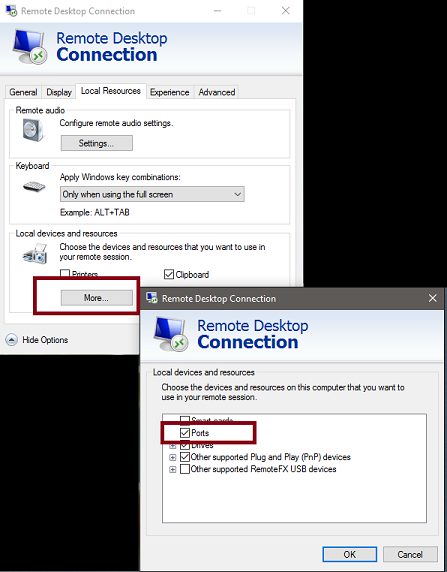
you will want the user to pull up the remote desktop connection and look at the properties of it. Go to the local resources tab, choose more, and then make sure the ports checkbox is checked. choose ok and then save. Then try connecting.
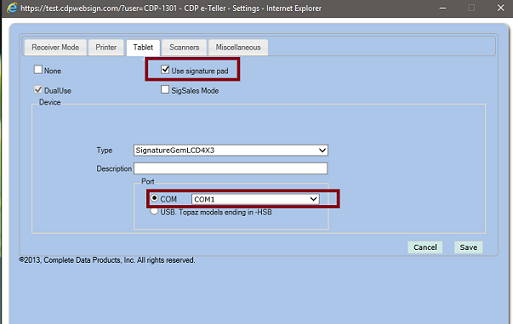
If that doesn't work, try checking the receiver settings. Right click on the receiver and choose settings. Then go to the tablet tab and make sure use signature pad is checked and the com radial button is being used and finally make sure in the drop-down the appropriate com port is selected.
** Note com ports 1-4 are supported **
If that doesn't work, ensure that the cables on the signature pad are snug and secured and that no wires appear to be frayed or damaged.
If still not working and a usb to serial adapter is being used make sure that is plugged into the PC and one of the com ports 1-4 are assigned to it, and also ensure that it plugged into the PC.
Also check the baud settings of the serial port on the PC, make sure that they are set to 38400 or 19200 [Cannot be anything else]. Make sure that the flow control is set to none, make sure that databits is 8, parity is none and stop bits is 1.