![CDPLogo2023_250x165.png]](https://kb.securecdp.com/hs-fs/hubfs/CDPLogo2023_250x165.png?height=40&name=CDPLogo2023_250x165.png)
If a client would like to pre-populate the database with email addresses and phone numbers for it members they need to send us a spreadsheet or delimited file with the following information:
-Member's name as it appears on the receipt (for Galaxy clients this will be LastName,FirstName for example Smith,John)
-The Member's number as it appears on the receipt (if the receipt has data masked or leading zeroes, the number they provide needs to match)
-The member's email address (if they have one)
-The member's phone number (if they have one)
Once we receive this information, we will need to format it into a tab delimited file in the following structure: [Member name][TAB][Member Number][TAB][Email][TAB][Phone Number]
For example:
Doe,John 00001234 a@bx.com 5555555555
-You will get the file in an excel form and make sure the format looks like the shot below
Column 1: Member name
Column 2: Member number
Column 3: Email
Column 4: Member name
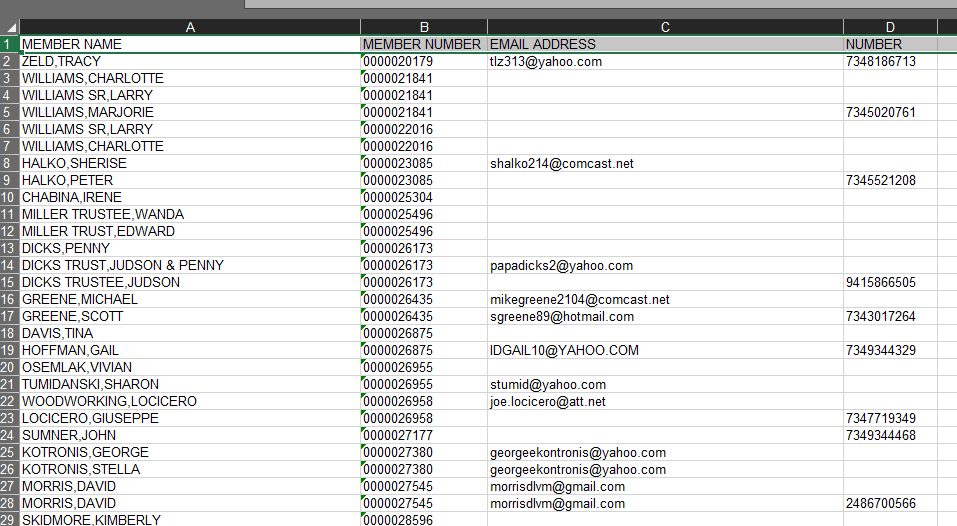
-DELETE THE TOP ROW ROW THAT HAS THE MEMBER NAME, MEMBER NUMBER, EMAIL ADDRESS, NUMBER
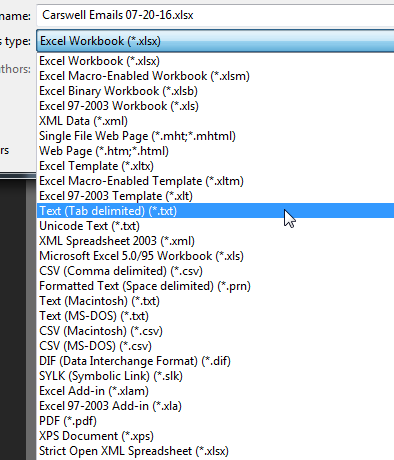
-Save as a Text(tab delimited) file
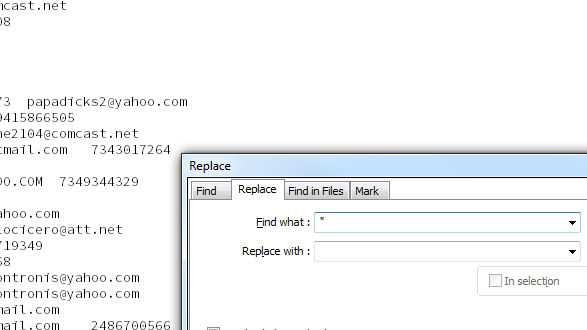
-Open your text file do the following to remove any quotation marks
-Press control H (or whatever is find and replace) and find " and replace with nothing
This file should be named emails.txt and then placed in the root of the C drive on the clients server (this file cannot have quotation marks in it).
Finally execute the following SQL script on the server: G:\CUFiles\Utils - CDP\Export_Import_eMails\add_emails_phone_v2.0.sql
- add_emails_phone_v2.0.sql (6 KB)