![CDPLogo2023_250x165.png]](https://kb.securecdp.com/hs-fs/hubfs/CDPLogo2023_250x165.png?height=40&name=CDPLogo2023_250x165.png)
**Note** In order to upload or remove forms, you must use the Lexmark Forms Manager. This has to be installed on a PC that is on the local network of the printer.
Form Manager Path: L:\INSTALLATION Files for forms manager\FORMS MANAGER for Client Installation
- Install Forms Manager on a local PC that is connected to the printer you want to work on.
- You will need to transfer this over as a zip file and unzip on the local PC for it to work correctly.
- You should create a folder on the C drive of the local workstation and label it “CDP Laser.” This is where you should install the Forms Manager program.
Steps to Remove Forms
- Open Forms Manager
- Select Add Printer
- You will need to enter the IP address of the printer (the description is optional). See below:
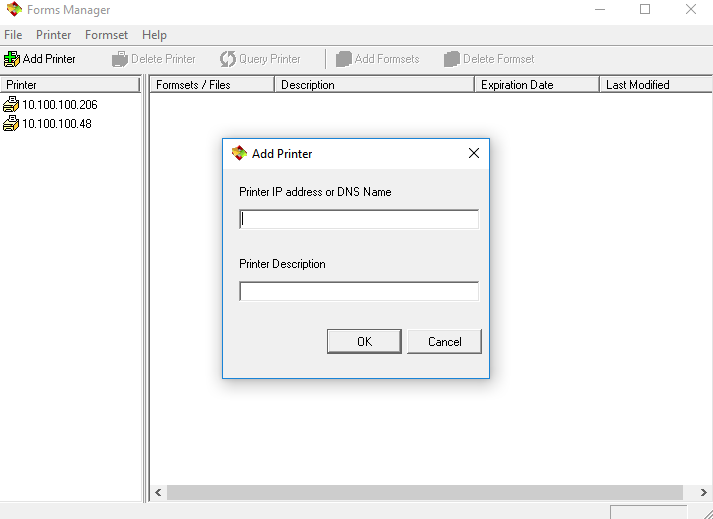
- Select the IP address of the printer you just added.
- Select Query Printer
- Select the form(s) you want to remove.
- Select Delete Formset and confirm that you want to delete.
Steps to Add Forms
- Select Add Formset
- Locate the form file you would like to load and select.
- The form should be saved to the local PC.