![CDPLogo2023_250x165.png]](https://kb.securecdp.com/hs-fs/hubfs/CDPLogo2023_250x165.png?height=40&name=CDPLogo2023_250x165.png)
Process Name in task manager: CDPReceiverETeller.exe
Receiver Mode Tab:
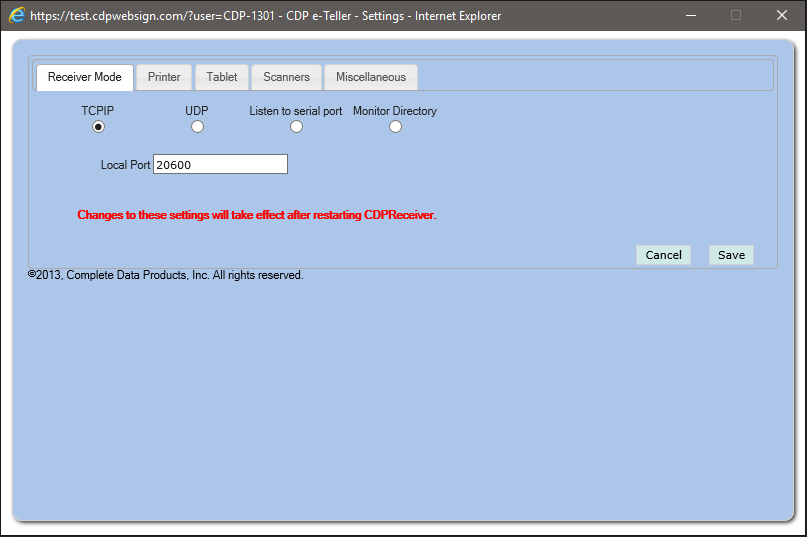
TCPIP: This is the button that should always be selected.
UDP: Not currently used
Listen to serial port: Not currently used
Monitor directory: Not currently used, but could be. This will listen to a folder for receipts. It has not been extensively tested on CDP's side.
Local Port: This is the port number TCPIP listens on, if UDP were used this is the UDP port it listens on, If listen to serial port were used we would put com1, com2, com3 etc to listen on it. The serial port listening is not currently used and is somewhat broken and shouldn't be used until further development is done. With that said, when TCPIP is selected the default port should be 20600, unless you are in terminal services. The pattern for that would be to start at 20600 and increment by 1, so the next one would be 20602 and so on.
Printer Tab:
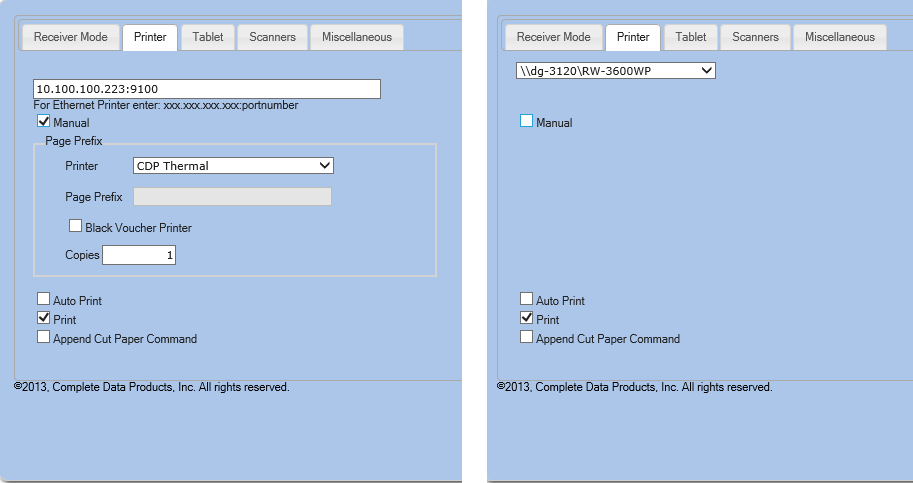
Manual: When checked you must put the IP Address and port number of the printer in the box.
Printer [Only when manual is checked]: Pretty much the only one we need to use is the CDP Thermal setting. The other will not work are Axiom, Com Printer (serial) still needs further development. The other setting may work, but this sends a prefix (initialization string to the printer) as of right now no one currently uses that setting.
Black Voucher [Only when manual is checked]: This setting is currently a mystery, it was initially intended to wrap a print job in a perl script for an EPSON TMT88xx print with a generic module, it emulates what the CDP module does on a generic epson ethernet module. Typically it is not supposed to be used (SEFCU paid for the development of this) and was intended for them only, but by checking this box, it has been know to fix some weird printing issues. May be worth checking if you encounter an odd issue where a CDP Thermal Printer starts printing differently.
Copies [Only when manual is checked]: Number of copies the printer will print, though it is here no matter what is put in the box, it will only print one copy, requires further CDP development.
Auto Print: When enabled, it will automatically print receipts. When disabled, the user will have to press the print button on application
Append Cut Paper Command: If a printer isn't cutting this will send a cut command to receipt printer. This setting is typically not used at all at the time this article was written.
Tablet tab:
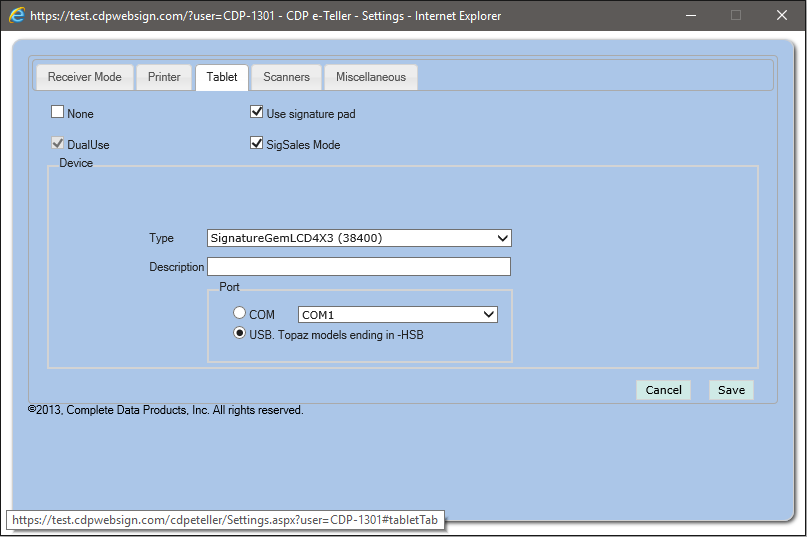
None: If checked, completely disables signature pad use.
Use signature pad: If unchecked you can use the sign with a mouse functionality. Sigsales won't work when it is un-checked.
Sigsales mode: Enables/disables sigsales.
Type: The drop-down only applies to serial signature pad and baud settings (19200 or 38400). We should always be using 38400. If it is a really old signature pad (non-backlit) 19200 should work. If it is an SE signature pad it will not work in a serial mode, but it will in the USB mode.
Description: Just a label, not really used for anything.
Port: COM(serial) or USB. If set to COM we can only use com1 thru com4. If set to USB nothing to change.
Scanners Tab:
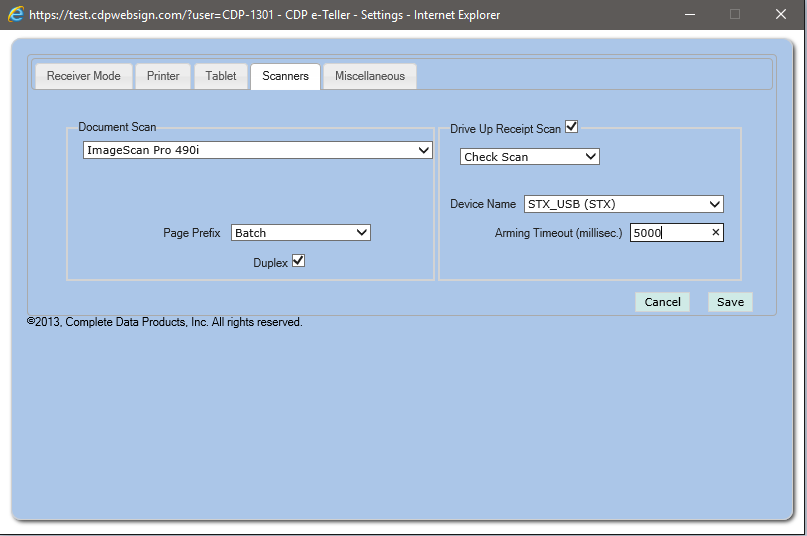
Document Scan: Select the scanner you wish to use when scanning a document (note that the scan documents in miscellaneous tab must be checked for scanning to be enabled.
Page Prefix: Single or batch. Single if the scanner is capable of only scanning in simplex, batch if the scanner is capable of scanning duplex. Simplex = scanning one side only Duplex = Scanning both sides.
Drive Up Receipt Scan: This enables the excella_stx scanner. Check Scan is the only option and doesn't reflect the nature of what it does. Note: we just use a check oriented scanner to capture drive-up receipts.
Device Name: Setting should always STX_USB, STX_ETHER, or STX.001
Arming Timeout (millisec.): 5000 (5 seconds) is the default and it used for how long the scanner will wait for a document to be inserted into it.
Miscellaneous Tab:
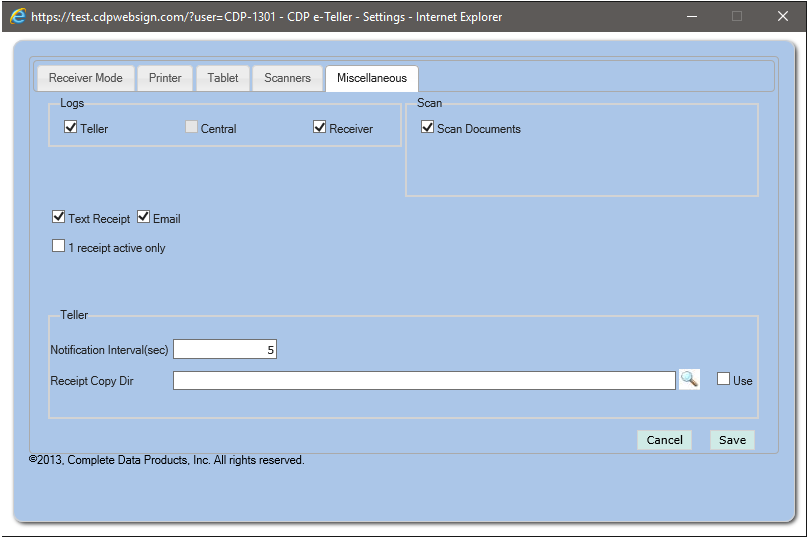
Logs: Enables or disables the logs, when troubleshooting make sure the receiver and teller are checked so that logs are created.
Text Receipt: Enables/Disables text receipt function for the user. Note if it is not setup in the admin piece this will not do anything.
Email: Enables/Disables email receipt function for the user. Note if it is not setup in the admin piece this will not do anything
1 receipt active only: When checked this will only allow 1 receipt at a time (disables receipt queueing), until transaction is accepted it will not allow any other transactions. Not currently used by any client currently.
Notification Interval(sec): This is setting with a couple purposes, it will notify every x seconds that there is a receipt waiting and also if the receipt launches in the balloon mode (widget looking) it may need to be adjusted to a higher value. Basically if internet explorer is unresponsive is waits x seconds before trying to initialize the internet explorer window.
Receipt Copy Dir/Use: Can be used for debugging, creates a copy of the receipt (when use is checked) to the directory of choice.
Scan Documents: Must be checked in order for scanning to work.
User/System Variables (not in the application, but needed to work)
Environment variables can be accessed by going to the control panel, system advanced system settings, advanced, and finally environment variables. [Must be an admin to access them this way]
You can always modify or set user variables from a command line my typing this in:
setx CDPETellerService https://xxx.xxx.xxx.xxx/[ServerName]/cdpeteller/
setx LogTCPIP false/true
Connection String (User & System Variable, User Trumps system variable though)
This can be a user and a system value, but must exist in the user variable section: CDPETellerService=https://xxx.xxx.xxx.xxx/[ServerName]/cdpeteller/
This must exist because it tell CDP E-Teller where to connect to.
TCP/IP Logging (User Variable):
LogTCPIP=True/False
Terminal Server or Not (System Variable):
If it is a terminal server both of these need to be set to true
TerminalServiceEnvironment=TRUE/FALSE
CDPETELLERTHINCLIENT=TRUE/FALSE
CDP E-Teller Installation Path (System Variable):
Installation path to be used for E-Teller. Can be useful if you go to run and type in "%CDPET%" and it will take explorer directly to the E-Teller installation folder.
CDPET=C:\Program Files (x86)\Complete Data Products\CDPReceiverETeller