![CDPLogo2023_250x165.png]](https://kb.securecdp.com/hs-fs/hubfs/CDPLogo2023_250x165.png?height=40&name=CDPLogo2023_250x165.png)
CDP ETeller Installation and Guide
First things first, you must configure the installation script. The settings below are explained. Some of these items may not need to be changed. But are there for reference. Some of these settings provide flexibility when installing in different environments. The latest script is attached to this article.
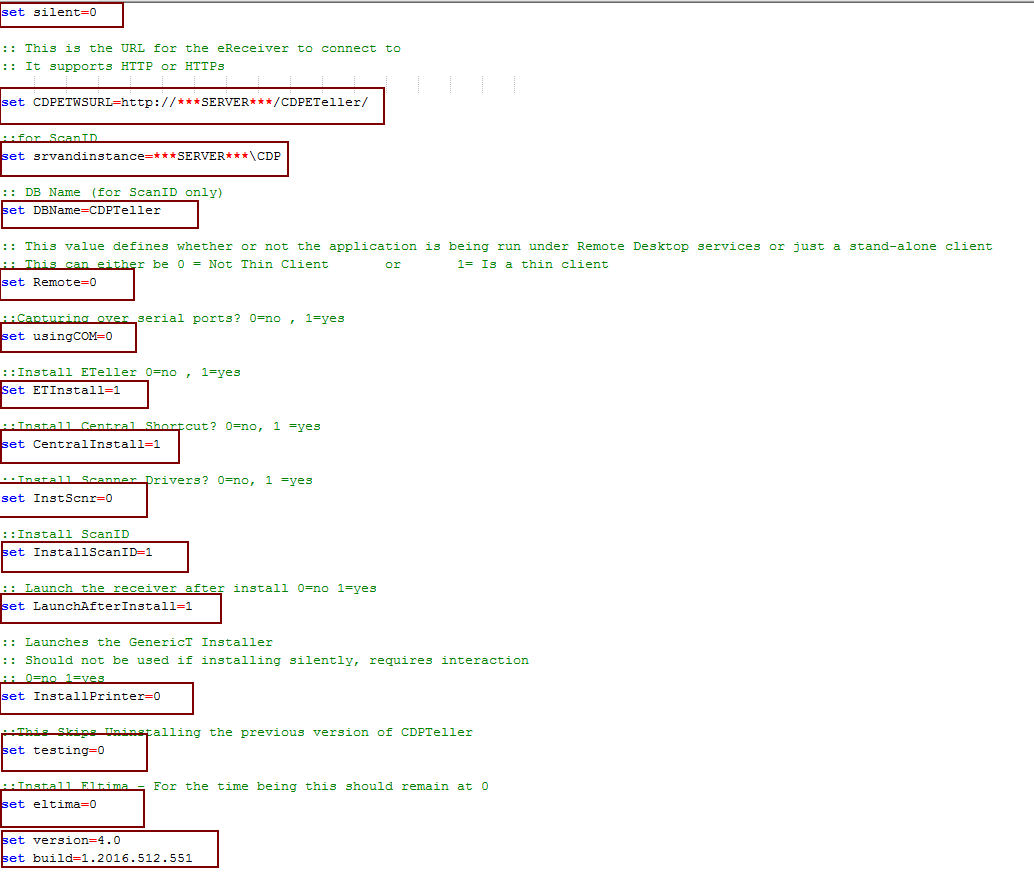
---------------------------------------------------------------------------------------------
** Note, the items that are in bold are the things that should be changed changing anything else will cause things to go horribly wrong **
--------------------------------------------------------------------------------------------
This setting determines if there will be any prompts presented during the installation routine. This is either 0 (not silent) or 1 (silent)
set silent=0
--------------------------------------------------------------------------------------------
This setting determines the URL of the CDP E-Teller web service.
set CDPETWSURL=http://***SERVER***/CDPETeller/
--------------------------------------------------------------------------------------------
This setting is for CDPScanID, it is the database connection string
set srvandinstance=***SERVER***\CDP
--------------------------------------------------------------------------------------------
This setting is the CDPScanID database
set DBName=CDPTeller
--------------------------------------------------------------------------------------------
This value defines whether or not the application is being run under Remote Desktop services or just a stand-alone client
This can either be 0 = Not Thin Client or 1= Is a thin client
set Remote=0
--------------------------------------------------------------------------------------------
This setting is for capturing data over a serial port, currently this will always be 0
0=no, 1 yes
set usingCOM=0
--------------------------------------------------------------------------------------------
This setting is for installing CDP ETeller, if you want to do not want to install CDP ETeller but install CDPScanID you would set this to 0 and keep ScanID set to 1
0=no, 1 yes
Set ETInstall=1
--------------------------------------------------------------------------------------------
This installs the CDPCentral Shortcut on the desktop, if they're using e-receipts mode this would be set to 0.
0=no, 1 yes
set CentralInstall=1
--------------------------------------------------------------------------------------------
This setting is to install the scanner drivers, currently it is not implemented yet.
0=no, 1 yes
set InstScnr=0
--------------------------------------------------------------------------------------------
Installs CDPScanID 0=no, 1 yes
set InstallScanID=1
--------------------------------------------------------------------------------------------
Should always be set to 1.
0=no, 1 yes
set LaunchAfterInstall=1
--------------------------------------------------------------------------------------------
Determines if the GenericText only print driver gets installed, this setting could be either or. Though Generic Text only print driver will handle printing hiccups a little bit better.
0=no, 1 yes
set InstallPrinter=0
--------------------------------------------------------------------------------------------
Unless you are doing testing, this is always going to be 0
0=no, 1 yes
set testing=0
--------------------------------------------------------------------------------------------
This is capturing data off a serial port, currently this is always going to be set to 0
0=no, 1 yes
set eltima=0
--------------------------------------------------------------------------------------------
This is the versioning, unless you are updating the script, this shouldn't be changed.
set version=4.0
set build=1.2016.512.551
--------------------------------------------------------------------------------------------
Once the above settings are configured, you can proceed with running the script. This script will install CDP ETeller, upgrade CDP Teller to CDP ETeller, or Upgrade older versions of CDP ETeller to the latest version of CDPETeller.
- CDP_eTeller_4.0.cmd (20 KB)