![CDPLogo2023_250x165.png]](https://kb.securecdp.com/hs-fs/hubfs/CDPLogo2023_250x165.png?height=40&name=CDPLogo2023_250x165.png)
Usually the URL resembles this pattern
http or https + server name or server ip address + /CDPETeller/Admin.aspx
Example:
https://test.cdpwebsign.com/CDPETeller/Admin.aspx
Password is: Complete1!
Database Tab
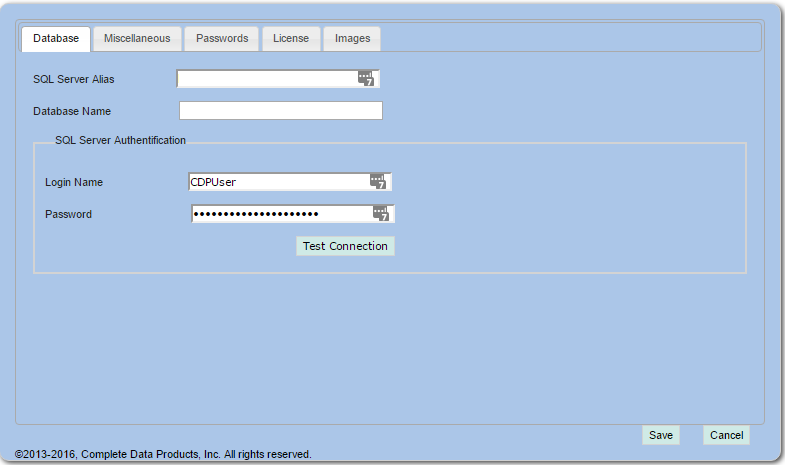
SQL Server Alias: server name or ip + \ instance [if one was setup]
Example localhost\cdp
Database Name: The name of the database
Login Name: CDPUser
Password: YouShouldPressAccept.
Test Connection: Tests to make sure you can connect to the database with the settings provided.
Miscellaneous Tab
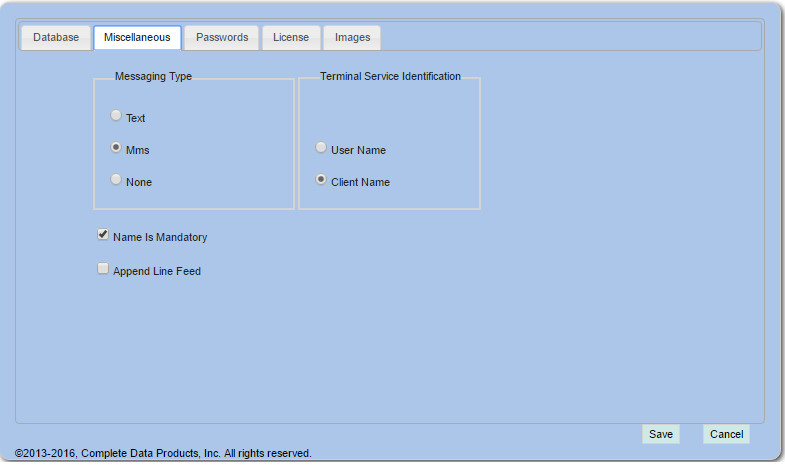
Messaging Type: Should always be set to MMS or None. This controls whether or not texting the receipt is enabled or not and whether is will be a text message or an MMS message. At this point though, MMS is all we are going to support going forward, unless a reason necessitates using text.
Name is Mandatory: Typically this will always be checked unless we are working with a data processing platform that doesn't include the member name on the receipt. This has more to do with emailing and texting than anything. Prior to this setting being introduced, it wouldn't allow clients to send emails without a member name.
Append Line Feed: If there are no Line Feeds on the receipt it won't print to a thermal printer. This setting adds a line feed after every carriage return.
Terminal Service Identification: In terminal services this controls how it attains license. Typical setup would be by client name (%CLIENTNAME% variable in terminal services). So when the application launches it will choose the %CLIENTNAME% variable for licensing. Otherwise it will use the %USERNAME% variable in terminal services. This is not ideal in most situations due the physical printer is connected to a workstation (%CLIENTNAME%) and doesn't follow the user around. We've kept this flexible in case we do run across a client that the hardware follows the user and doesn't stay with the PC.
Passwords Tab:
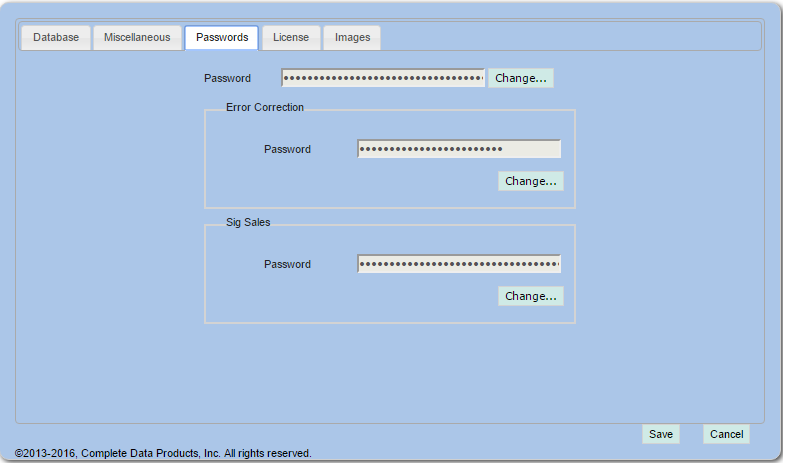
This is pretty self-explanatory
Password: Controls the password to logon to the admin.aspx page This is Complete1! by default.
Error Correction password: Password to error correct. Usually error.
Sigsales Passowrd: Password to logon to sigsales to setup, edit, and delete questions. by default it is sigsales.
License Tab
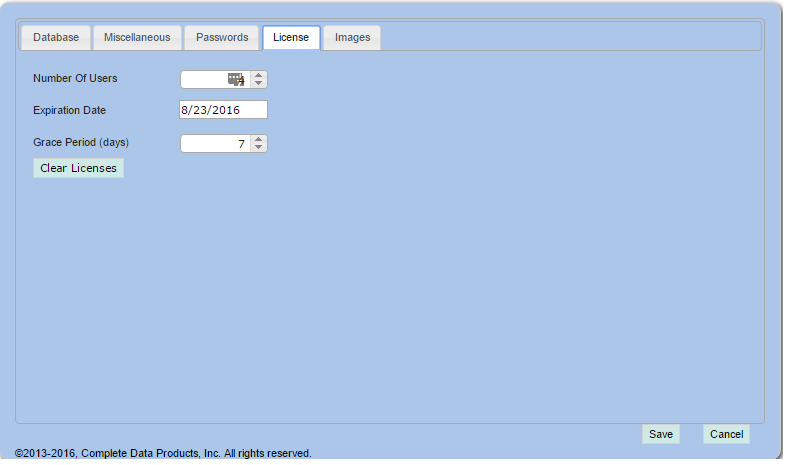
Number of Users: Number of users that will be using CDP E-Teller.
Expiration Date: The date the licenses will expire.
Grace Period (days): The number of days before the expiration date that it will start alerting users that the license is about to expire.
Images Tab
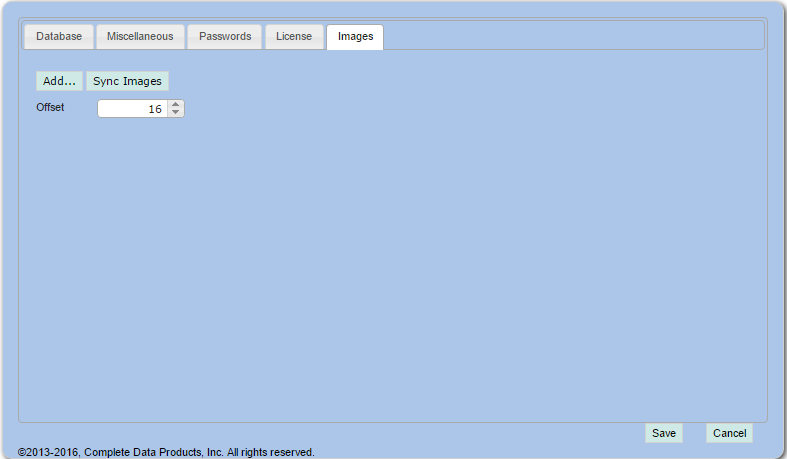
Add: Button to add an image. png is preferred format, but will accept jpg, bmp, and tif. When pressed it will allow you to browse for the image on the PC/Server's local file system.
Sync Images: This will sync the images with the CDP txt/mms server.
Offset: This is used to adjust the positioning of the image on the receipt. If the image overlaps text on the receipt, then the number should be incremented until the desired result is achieved. Usually 1 or 2 should be sufficient, but we've had instances where it needs to be as high as 16 in the example.
*** Important note for MMS to work correctly ***
In order for MMS to work there is a setting in the database that needs to match the CU Code in the credit union tab from this URL.
https://securemailws.cdpsecuredocs.com/cdptextreceipts/admin.aspx
In the database there is a table called setup, the column that needs to match exactly is CUCode