![CDPLogo2023_250x165.png]](https://kb.securecdp.com/hs-fs/hubfs/CDPLogo2023_250x165.png?height=40&name=CDPLogo2023_250x165.png)
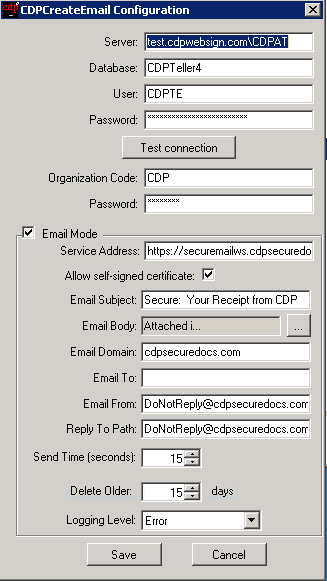
Configuration Explanation:
Server: usually localhost\cdp -- can be different if we have installed our database on a custom sql server setup but usually this
Database: CDPTeller or CDPTeller4 -- can be different, but usually one of these.
User: CDPTE
Password: UsuallyFasterThanPigeons.
Organization Code: CDP
!! ** TAKE NOTE ** !!
If they have a branded portal and are using a custom email address then additional setup is necessary. Use the Organization Code that is setup when following this article:
https://cdp.zendesk.com/hc/en-us/articles/218877488
Email Mode: Always checked, no reason for it to be unchecked
Password: 5755Troy
!! ** TAKE NOTE ** !!
If they have a branded portal and are using a custom email address additional setup is necessary. Use the Password that is setup when following this article:
https://cdp.zendesk.com/hc/en-us/articles/218877488
Email Mode: Always checked, no reason for it to be unchecked.
Service Address:
https://securemailws.cdpsecuredocs.com/CDPSendEmailService/CDPSendEmailService.svc
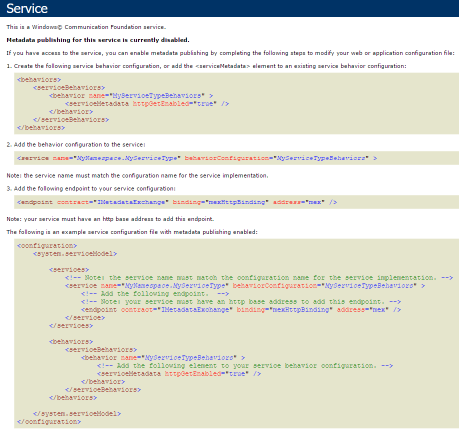
You should be able to pull up this URL from the clients server, if not you will not be able to send receipts out. If it doesn't pull up they need to allow this site in their firewall or proxy server. It should pull up a page similar to this:
Allow Self-Signed Certificate: Always checked, no reason for it to be unchecked.
Email Subject: Secure: Your Receipt from [Client's Official Name] or if they're not sending encrypted email take out secure [For this they should be masking the member number and member name on the receipt ETeller Only]
Email Body:
This is what we recommend, however it can be changed to whatever the client would like it to read.
Attached is the teller receipt from [Client's Official Name].
Please do not reply to this email as it is an unattended email box.
Thanks-
[Client's Official Name]
Email Domain: cdpsecuredocs.com
!! ** TAKE NOTE ** !!
If they have a branded portal and are using a custom email address additional setup is necessary. Use the client domain that is setup when following this article:
https://cdp.zendesk.com/hc/en-us/articles/218877488
Email To: Should always be blank. No need to fill this in.
Email From: DoNotReply@cdpsecuredocs.com
!! ** TAKE NOTE ** !!
If they have a branded portal and are using a custom email address additional setup is necessary. Use the DoNotReply@[client domain] that is setup when following this article:
https://cdp.zendesk.com/hc/en-us/articles/218877488
Reply Path: DoNotReply@cdpsecuredocs.com
If they have a branded portal and are using a custom email address additional setup is necessary. Use the DoNotReply@[client domain] that is setup when following this article:
https://cdp.zendesk.com/hc/en-us/articles/218877488
Send Time: 15 -- This is how often the program checks the database for emails that need to be sent. This value is in seconds.
Delete Older: 15 -- This is value is in days and it is how many days the successfully emailed transactions will stay in the database. If we have not set up reporting for the client 15 days is a good value, if we are doing reporting for the client, then a good value would be to have this set to 31.
Logging Level: Error -- This is the logging level that gets recorded into the event viewer. Usually we want to set this to error that way it will not litter the event viewer with create email log entries. It may be useful to put at All, Informational, or Warning if we are trying to troubleshoot a problem. Usually error is enough to troubleshoot with but can be change if additional information is needed and a error isn't providing enough.
All, Information, Warning, Error
!! ** TAKE NOTE IF ANY CHANGES TO THE CONFIGURATION ARE MADE ** !!
If you make any changes to this configuration you will need to restart the windows service in order for these changes to take effect.
To do this use windows key + r to pull up the run dialogue, then type in services.msc and find the cdpcreatemail service, right click and choose restart.
Alternatively you can pull up a command line as an administrator if necessary and type in
sc query type= service state= all | find "CDP"
This will list all the CDP Services that match CDP.
Then usually you will find this in the list CDPCreateEmailService
Then type in
sc stop CDPCreateEmailService
Then
sc start CDPCreateEmailService